Learn the Omnivue CRM
Step-by-step guides for the field and office tools. Screens show example data.
Dispatch board
In the app: /dispatch
A day or week timeline with one row per technician and a queue of unassigned tickets, jobs, and maintenance visits.
- Open Dispatch from the rail (Planner) or the command palette.
- Use Previous and Next to pick the day, or switch the timeline to week.
- Find the work in the Unassigned queue on the side of the board.
- Drag a ticket, job, or maintenance visit onto a technician's row at the hour it should start.
- If the slot overlaps something already booked, the board warns you. The visit still saves.
- Use Sync calendars to push the visit to Outlook once the calendar provider is connected.
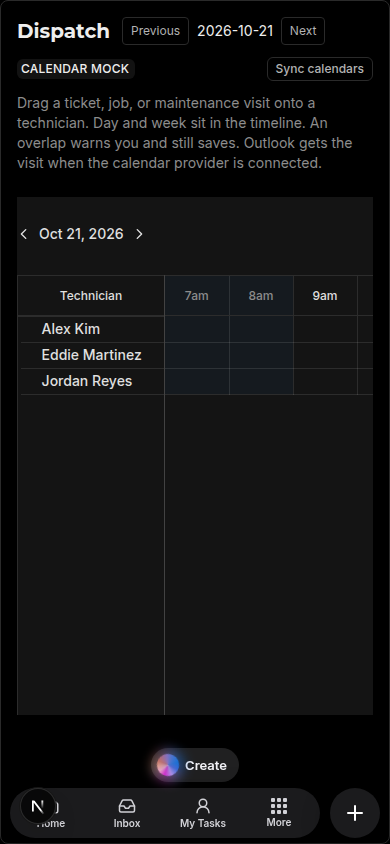 Dispatch on a phone: technicians down the side, hours across the top.
- Until Outlook is connected the board shows Calendar mock, and scheduling still saves in the CRM.
- Add a technician in Settings before scheduling. The board needs at least one person.
2Tech phone view, signatures, and PDF reports
In the app: /field
Today's visits for the signed-in technician, built for a phone.
- On the phone, sign in and open Today (the /field view).
- Pick the visit at the top of the list. Nothing scheduled shows "Nothing scheduled for you today."
- Tap Check in when you arrive on site.
- Work through the checklist, add photos, and list the parts you used.
- Hand the phone to the customer to sign in the Signature box.
- Tap Check out, then Save and build service report.
- The PDF service report is attached to the visit and appears in the client portal for that ticket's requester or contact.
- There is no offline queue yet. Keep the phone on a connection while saving.
3Time tracking, timesheets, and job costing
In the app: /timesheets
Timers on jobs, tickets, tasks, and visits roll up into weekly timesheets and labor cost on each job.
- Set each person's labor rate first: Settings → People, enter $/hr, and save.
- On a job, ticket, task, or visit, tap Start timer. Tap Stop timer when you are done.
- Forgot a timer? Open Timesheets and add minutes by hand. A manual entry can name a job.
- Open Timesheets to see the week grouped by technician, with billable and non-billable totals.
- Open a job to see estimated hours, actual hours, and labor cost from billable time.
- Labor cost uses the rate saved on each person. A person with no rate adds no labor cost.
4Contract renewal alerts and maintenance visits
In the app: /contracts
Service contracts carry term, coverage, billing, and a maintenance frequency.
- Open Contracts and fill in the client, contract name, term, billing amount, start and renewal dates.
- Choose a maintenance frequency (for example Quarterly) or none.
- Tap Add and activate.
- Activating a contract with a frequency creates that year's maintenance visits. They wait, unassigned, in the Dispatch queue.
- Drag each maintenance visit onto a technician from Dispatch.
- Owners and admins get an in-app renewal alert 90, 60, and 30 days before the renewal date. Find them under Inbox → Leads/Renewals.
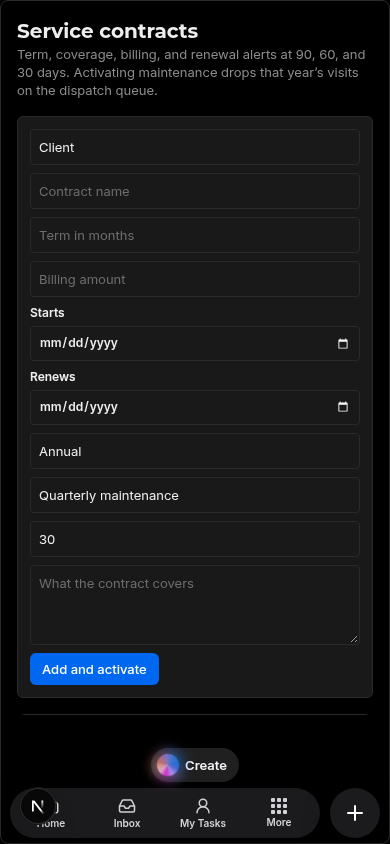 The contract form. Add and activate creates the year's visits.
- The dashboard shows recurring monthly revenue from active contracts. Annual amounts are divided by 12.
A trigger, optional conditions, and one in-app action. Automations never send email or SMS.
- Open Settings → Automations.
- Name the automation.
- Pick a trigger: status change, new lead, new ticket, SLA warning, or contract renewal window.
- Optionally narrow it: priority, service line, status, or only when a tag is present.
- Pick one action: assign, set status or priority, create a task, notify in-app, or add a tag. Fill in the field that action needs.
- Tap Save automation. Each run is listed in the Run log on the same page.
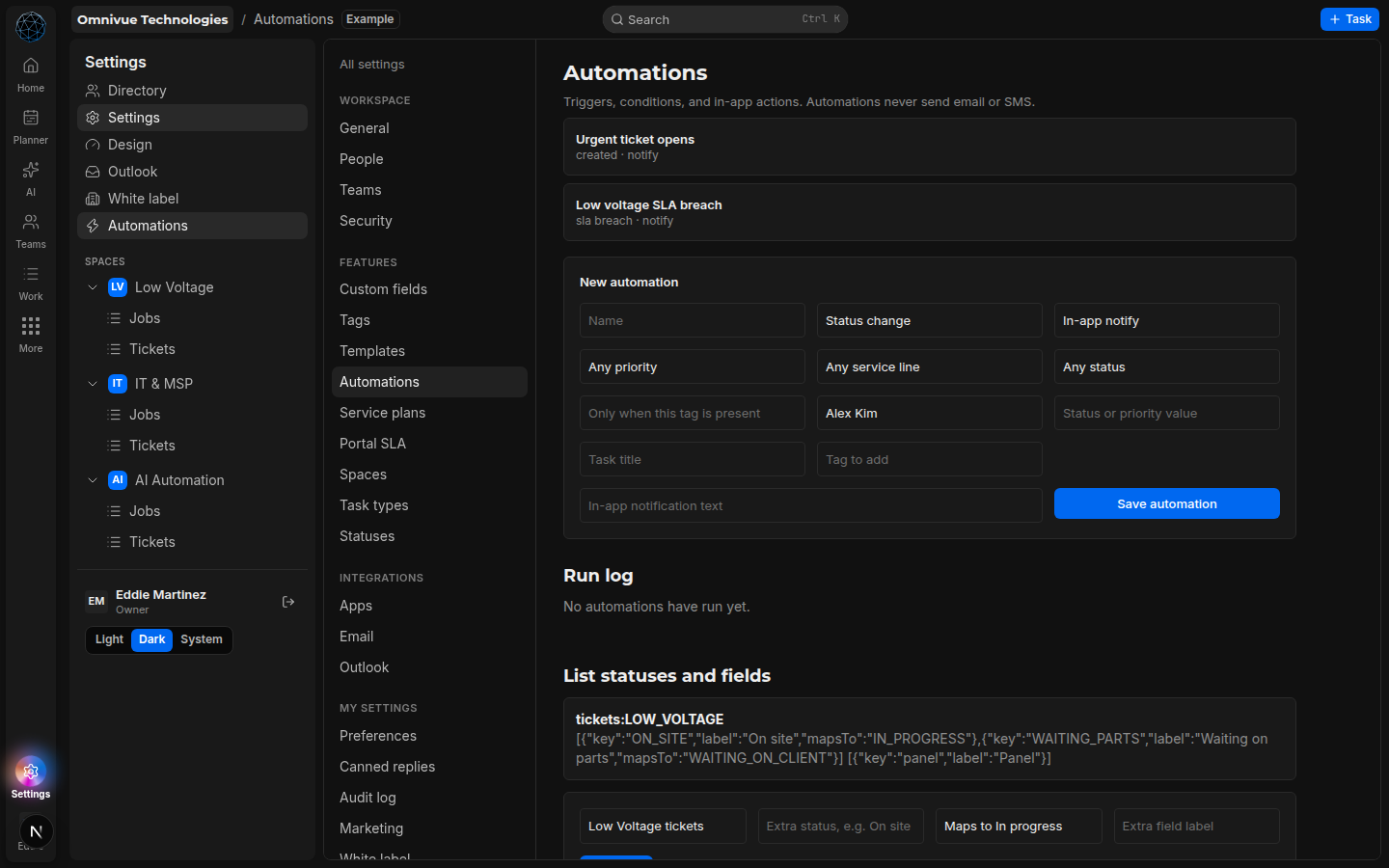 Settings → Automations: the builder and its run log.
Good / Better / Best service plans
In the app: /settings
Three plan tiers you can offer on a deal.
- Open Settings → Service plans.
- For Good, Better, and Best, enter the monthly price and what the plan covers, then save. Until then each tier says Placeholder.
- Open the Sales pipeline and pick a plan on a deal.
- A plan on a deal is an offer, not a live contract. When the client signs, add the agreement in Contracts.